Your first five minutes.
SwiftQueue is already working the moment it's active — this tour is about understanding what you're looking at, not configuring anything. Three screens matter.
The Overview — is everything okay?
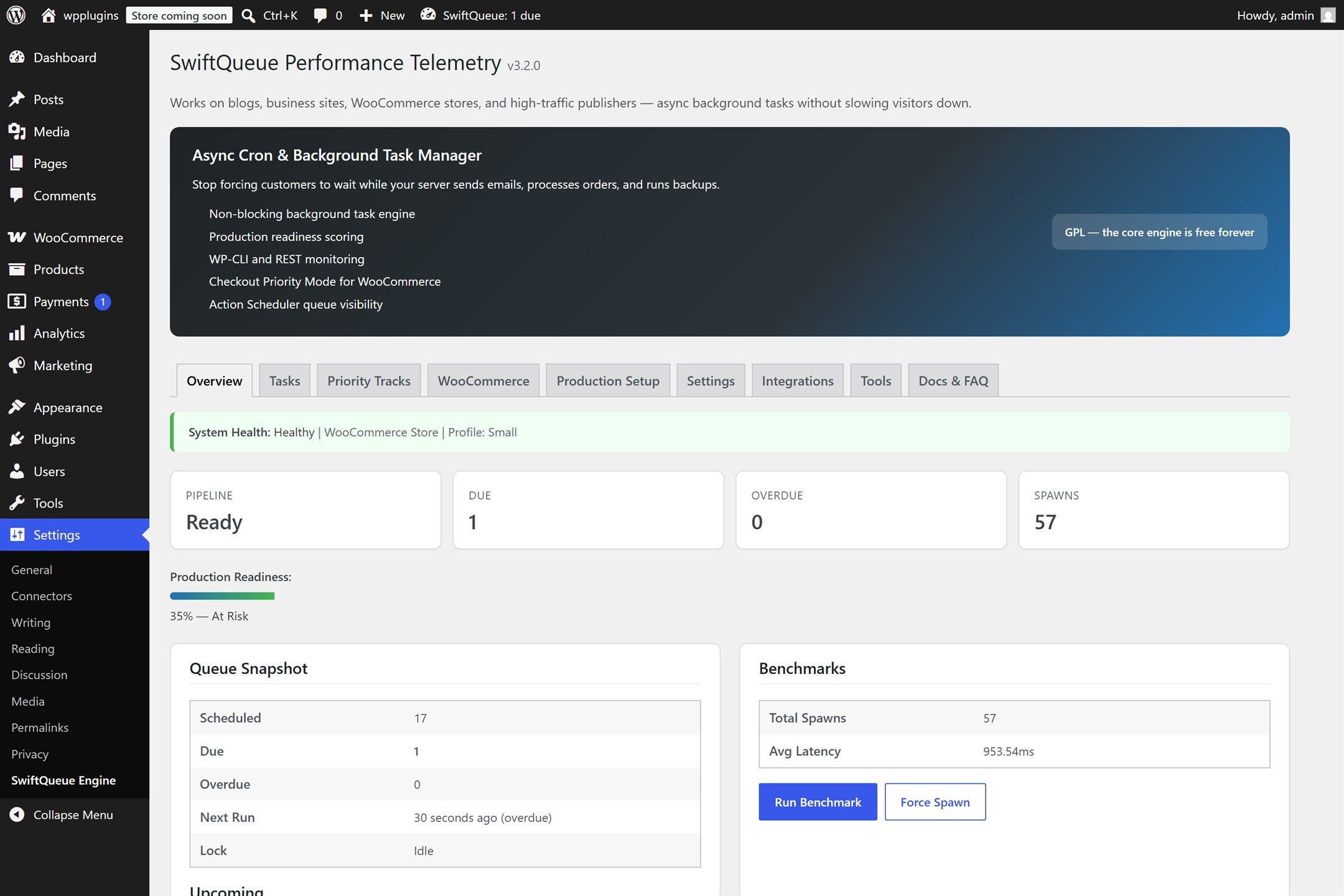
Reading it top to bottom:
System Health — the green line. If it's green, you can close the tab; everything below is detail.
Due — chores waiting to run right now. A small number that comes and goes is normal life, not a problem.
Overdue — chores that have waited more than five minutes. This staying at zero is what SwiftQueue is for.
Spawns — how many times SwiftQueue has sent a background worker to do chores. This number going up means it's working.
The Tasks tab — what's actually scheduled?
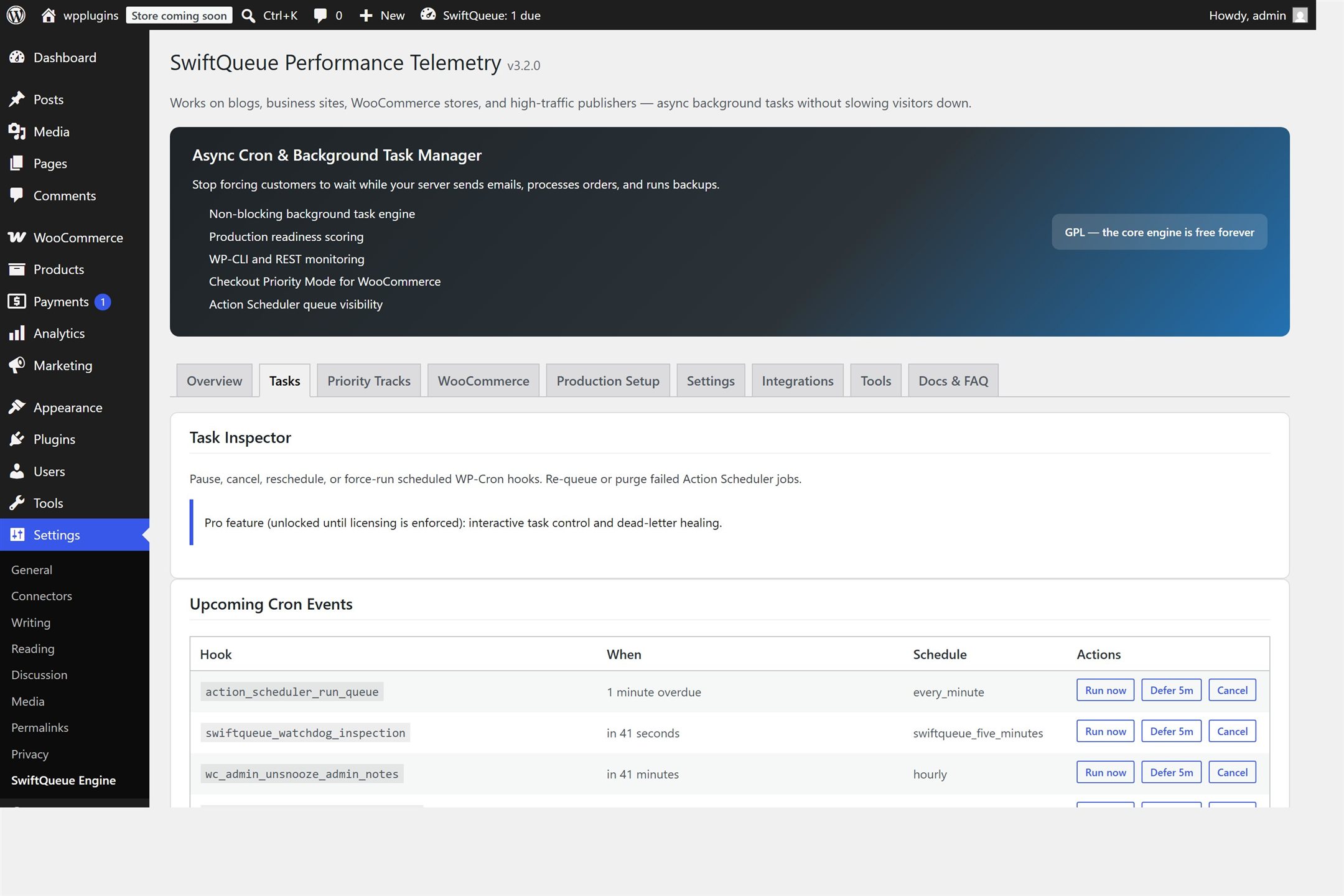
Every chore your site has scheduled, by name, with when it's due. You'll recognise some names from your plugins. The buttons do what they say: Run now if you don't want to wait, Defer to push one back, Cancel to remove it. You don't need to touch any of this day to day — it's here for the day you're curious or something looks stuck.
Production Setup — the one checklist worth caring about.
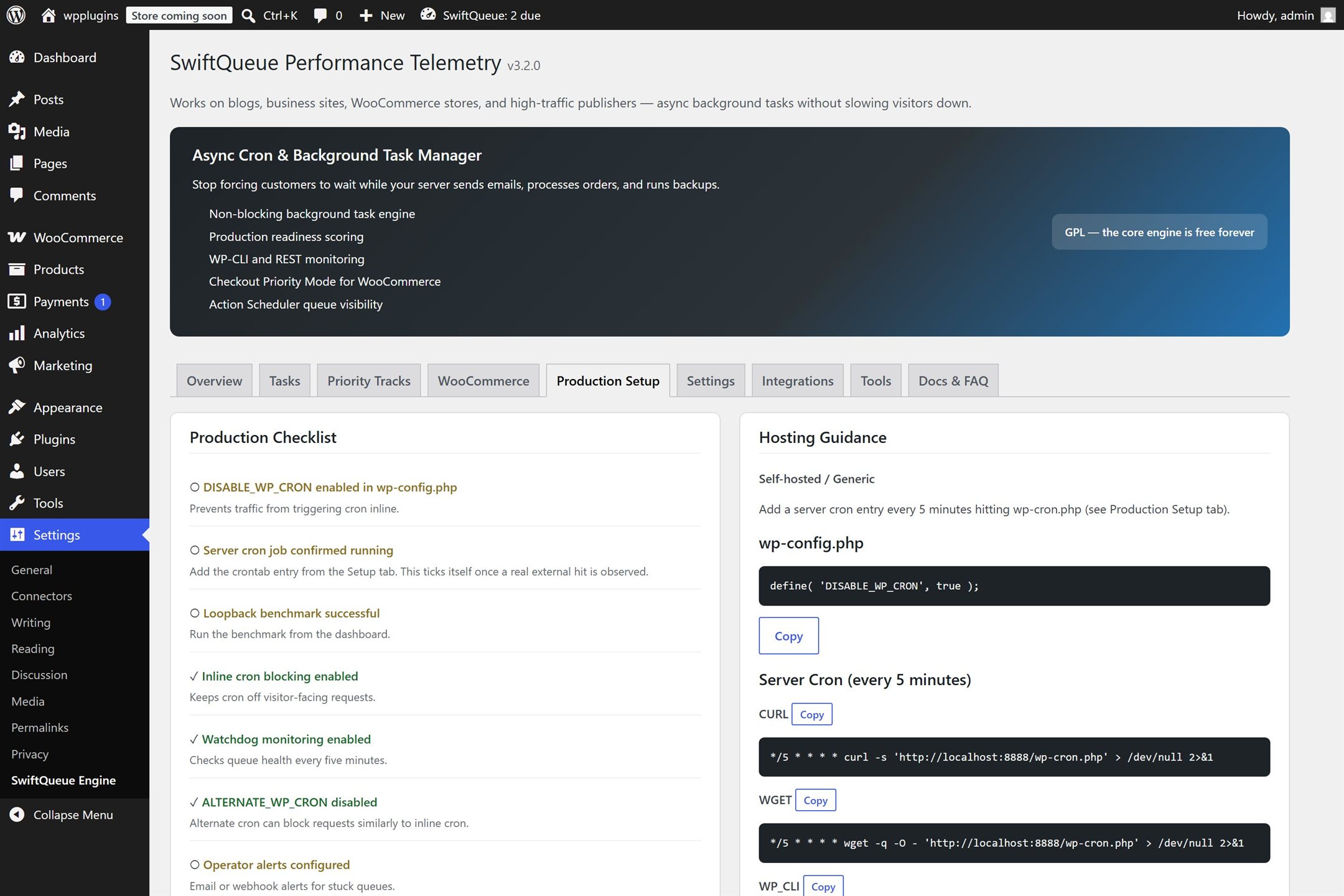
This checklist scores how robust your setup is. Two honest things to know about it:
A middling score is normal and fine for most sites. The top items involve asking your hosting company to run a schedule for you (the right-hand panel gives you the exact text to copy). Worth doing for a business site; skippable for a hobby one.
The checklist doesn't take your word for it. The "server cron" item turns green only when SwiftQueue has actually observed your host's schedule working — not when a box is ticked. If it's green, it's true.
That's the tour. If the health line is green and Overdue sits at zero, SwiftQueue is doing its job and needs nothing from you. Questions the dashboard raises are usually answered in the FAQ — and if something ever looks wrong, the plugin's own messages match the headings in the technical docs word for word.